An upload can fail for various reasons; here we'll talk you through some of these reasons, and how to resolve them.
Formulas in your file
If there are formulas in your upload file, you will be unable to upload it. To find any formulas in excel, go to Home, and in the Editing group select Find & Select.

Select Formulas from the dropdown, or select Go To Special, and choose Formulas. This will take you to any formula present in your upload file.
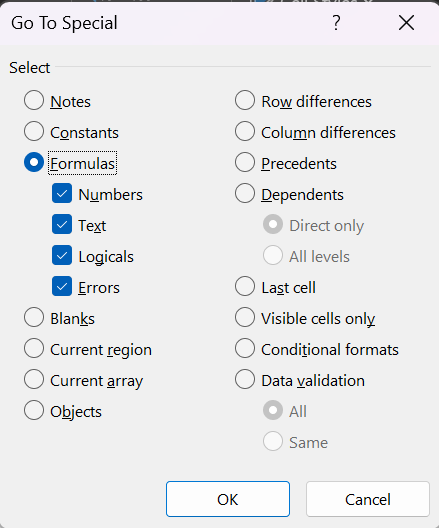
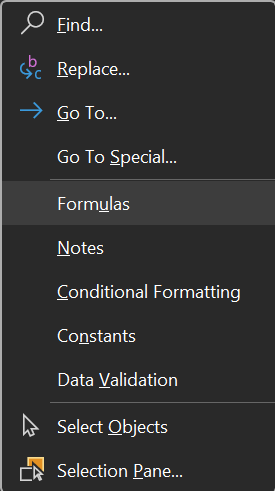
To remove these formulas simply select the cells containing formulas, copy (right click, copy or CTRL + C), then paste as value (right click, paste values).
Null or error values
If you have used a lookup function in excel to find values and information to go in your upload file, this can sometimes result in error values.
If your lookup has been unable to find a value, the result will be #N/A. This may cause the upload to fail.
If the target of your lookup is 0 or blank, the result will be 0. However, if the destination of your lookup is formatted as a date, the result will be 00/01/1900, which can cause your upload to fail.
Incorrect Format
If your upload is not in the correct format, it will not be able to upload. Even if you add completely empty columns, they are necessary for the upload to know what goes where. If your upload fails and you receive an error report in which the column arrangement is different to your original upload, it is most likely the case that you dont have the correct layout for the type of upload you are trying to do.
Duplicate values
Depending on what you are uploading, duplicate values in the Store ID or Visit ID can cause the upload to fail. To identify duplicate values in excel, highlight the column causing this error, then go to Home, and find Conditional Formatting in the Styles group.

Select Highlight Cell Rules, and select Duplicate Values.
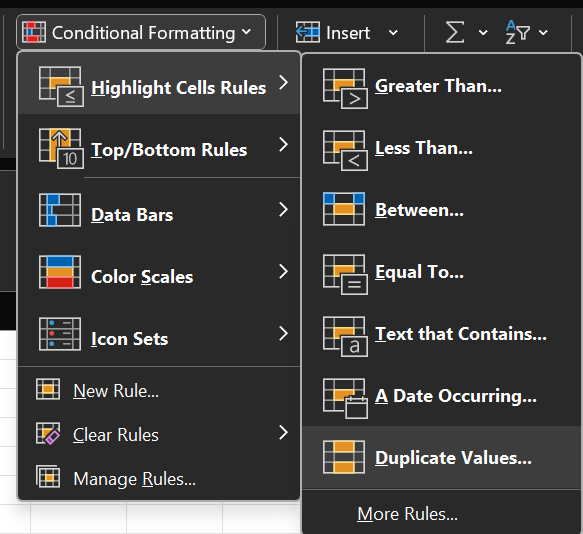
If there are multiple duplicate values, you may have to upload the file in batches, with only unique values in each upload file.
There may also be duplicate values on Insite, for example two locations with the same Store ID and Store Group. In this case, identify the store and contact the Tech Support Team to let us know which of the duplicate values to remove from Insite.
Missing data
If your upload file contains information that does not yet exist on Insite, this will cause the upload to fail.
Essential data
Essential data is highlighted on the upload page. If there is nothing in these essential fields, the upload will fail.
Personnel error
Search for the relevant personnel on Insite. If they exist, make sure that all of the associated information in your upload file matches Insite. If they do not exist on Insite, you can add them in the Personnel Dashboard.
Location error
Search for the relevant location(s) on Insite. If it does exist, make sure that the Store ID, store group, and address information in your upload file matches Insite. If the location does not exist on Insite, you can upload new locations in Project Settings.
If this article did not help you resolve your issue, please create a ticket here or contact the support team at support@insite.one.
Was this article helpful?
That’s Great!
Thank you for your feedback
Sorry! We couldn't be helpful
Thank you for your feedback
Feedback sent
We appreciate your effort and will try to fix the article